
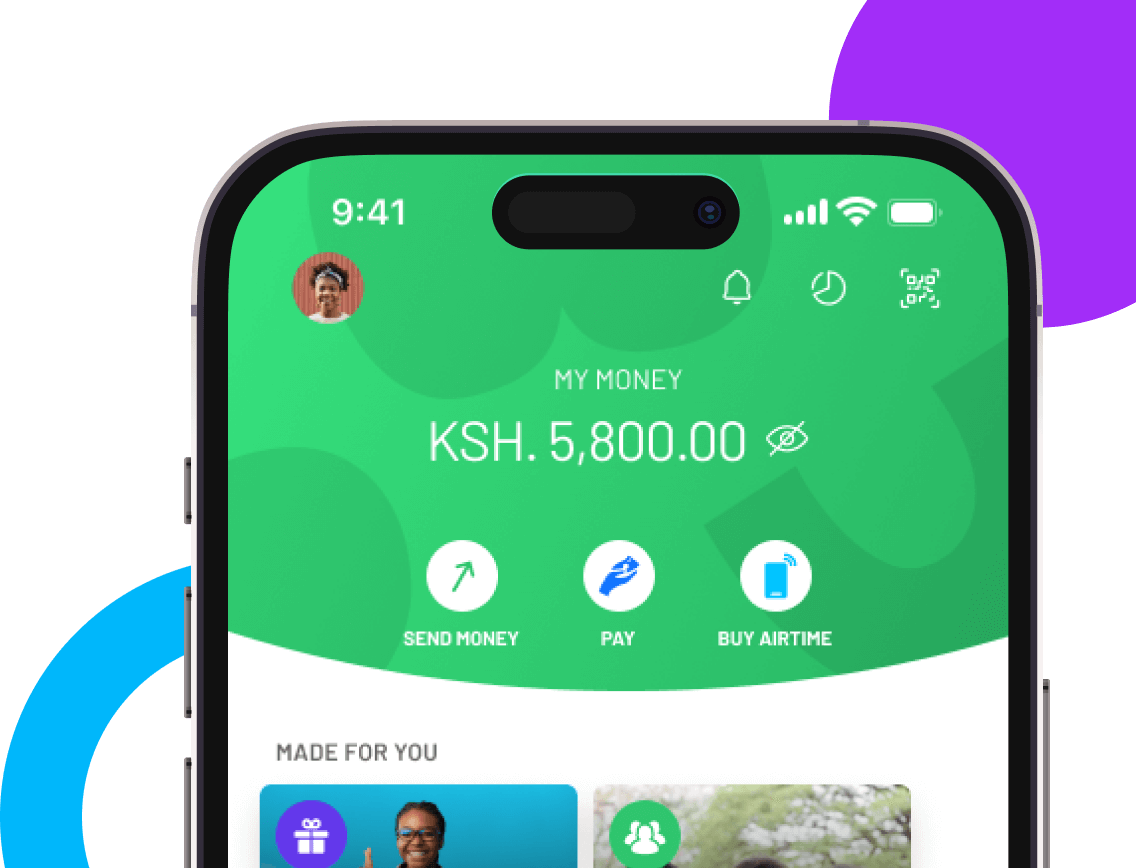
The M-PESA app home screen and dashboard serve as your central hub for managing mobile money transactions, balances, and expenses with ease. When you log in, this is the first page you see, giving you instant access to your account overview and the most frequently used features like Send Money, Pay Bill, Buy Goods, Withdraw, and Buy Airtime.
Think of it as your financial command center. From one glance, you can check your M-PESA balance, Fuliza credit, or even track how much you’ve spent in the month through clear visual cards and statements. No more scrolling endlessly—everything you need is neatly organized and just a tap away.
With millions of Kenyans relying on M-PESA daily, understanding how to navigate this home screen not only saves you time but also helps you avoid costly mistakes.
Mpesa App Home Screen Layout
The M-PESA app home screen is designed to be simple yet powerful, bringing together your most essential tools in one place. When you log in, this is the first page you land on, and it’s built to help you take action quickly.
Here’s what you’ll find on the home screen:
- M-PESA Balance – Your current account balance is displayed at the top. You can tap to hide or reveal it for privacy, especially in public spaces.
- Fuliza Available Credit – If you’ve opted into Fuliza, the available overdraft limit appears right below your balance.
- Quick Actions – A set of shortcut buttons for the most common transactions, including:
- Send Money
- Pay (Pay Bill or Buy Goods)
- Withdraw (at an agent or ATM)
- Buy Airtime (for yourself or others)
- Monthly Spend Card – A visual card showing how much you’ve spent in the month, categorized into areas like bills, shopping, or transfers.
- Full Statements – Access your recent transactions with an option to view, filter, and download receipts.
- QR Scanner – A handy tool for making payments by scanning QR codes at shops, merchants, or services.
Why this layout matters:
- Convenience – Everything you need is in one screen.
- Clarity – You get both a financial snapshot and tools for immediate transactions.
- Control – You can quickly switch between spending, sending, or managing your account.
Mpesa App Dashboard and Bottom Menu
Beyond the home screen, the M-PESA app dashboard is powered by the bottom navigation bar. This bar appears on every screen, ensuring you can easily move between sections without confusion. Think of it as your map to different parts of the app.
Here’s what each tab offers:
Home
- View balances (M-PESA and Fuliza).
- Access quick actions like Send Money, Pay Bill, or Buy Goods.
- See monthly spend and recent transactions.
- Open the QR code scanner.
Transact
- A full list of transactions you can perform, such as:
- Send Money (to M-PESA or other networks).
- Request Money.
- Pay Bill and Buy Goods.
- Withdraw at ATM or Agent.
- Buy Airtime.
- Access Fuliza.
Grow
- Explore savings and loan options like M-Shwari, KCB M-PESA, and Mali.
- Discover financial tools designed to help you manage and grow your money.
My Spend
- A detailed analytics section.
- Track spending trends over the month.
- View categorized expenses for the last 6 months.
- Gain insights to improve financial decisions.
Discover
- Access value-added services like Safaricom bundles, ProGas, train or bus bookings, and more.
- Manage subscriptions and pay for third-party services without leaving the app.
This structure makes it easy, logical, and user-friendly. Instead of navigating hidden menus, you always know where to go. Each tab is designed to serve a specific purpose, helping you stay in control of your finances.
Using Quick Actions Effectively
One of the biggest advantages of the M-PESA app home screen is the Quick Actions bar, which allows you to perform common transactions in just a few taps. Instead of navigating through multiple menus, Quick Actions are designed to save you time and simplify your day-to-day payments.
Here are the main Quick Actions and how to use them:
- Send Money
- Choose a contact from your phonebook or enter a number manually.
- Enter the amount, confirm details, and authorize with your PIN.
- You can also add recipients to Favorites for faster repeat transactions.
- Pay (Pay Bill or Buy Goods)
- Pay Bill: Enter the business number and account number, then confirm the amount.
- Buy Goods: Enter the till number for merchants and pay instantly.
- Both options support Favorites and Frequents for convenience.
- Withdraw
- Choose to withdraw from an Agent or an ATM.
- Enter the agent/ATM number, the amount, and confirm with your PIN.
- Buy Airtime
- Purchase airtime for your own line or for others.
- Select a contact, enter the amount, and confirm payment.
Why Quick Actions matter:
- Speed – Transactions are completed in fewer steps.
- Convenience – Your most-used services are always at your fingertips.
- Personalization – By adding Favorites and using Frequents, the app becomes tailored to your habits.
Tracking Expenses with the Spend Dashboard
The Spend Dashboard, found under the My Spend tab, transforms your M-PESA app into a personal finance assistant. Instead of guessing where your money went, you get a clear breakdown of all your expenses—helping you make smarter financial decisions.
Here’s what you can do with the Spend Dashboard:
- View Monthly Totals
- See exactly how much you’ve spent in the current month.
- Swipe left or right to view totals for previous months or see an aggregate of the last six months.
- Category Breakdown
- Expenses are grouped into categories such as bills, shopping, food, or transfers.
- By tapping on a category, you can drill down to see the individual transactions that make it up.
- Charts and Visuals
- A simple line chart shows your spending growth across the month.
- You can track whether your expenses are increasing or decreasing and adjust accordingly.
- Statements and Receipts
- Full statements are available with the option to export and download.
- You can also share receipts directly for accountability or record-keeping.
Why this is useful:
- Transparency – You always know where your money is going.
- Planning – Helps you budget for future expenses.
- Awareness – Prevents overspending by showing patterns you may not have noticed.
With the Spend Dashboard, the M-PESA app is not just about sending money—it’s about helping you manage it wisely.
Managing Your Account and Settings
The Account tab in the M-PESA app is your personal control center. It’s where you customize how the app works for you, manage security features, and access support. By learning to use this section, you ensure your account stays secure and tailored to your needs.
Here are the key features you’ll find in Account & Settings:
- Profile Management
- Add or change your profile picture to make it easier for others to identify you when sending or receiving money.
- Update your details and manage how you appear to your contacts.
- Security Controls
- Change PIN: Reset or update your 4-digit M-PESA PIN anytime for added security.
- Biometrics: Enable fingerprint or facial recognition for quicker logins and transaction confirmations.
- Offline Mode (Android only): Carry out transactions without internet by using silent SMS technology.
- Favorites & Frequents
- Add, edit, or delete favorites for Send Money, Pay Bill, and Buy Goods.
- This personalization ensures repeat transactions are faster and error-free.
- Support & Legal Information
- Access FAQs to resolve common issues instantly.
- Contact Safaricom support directly if you encounter errors.
- Review Terms & Conditions and the Privacy Policy for transparency.
Why this matters:
- Security – Protects your money with customizable settings.
- Convenience – Personalizes the app to your usage style.
- Control – Gives you peace of mind knowing you can manage everything from one place.
Conclusion
Navigating the M-PESA app home screen and dashboard is the key to unlocking the full potential of mobile money. From checking your balance and using Quick Actions, to exploring the Spend Dashboard and managing your account settings, every feature is designed to give you speed, control, and financial clarity.
By familiarizing yourself with the home screen layout, the bottom navigation menu, and the powerful tools like Fuliza, My Spend, and QR payments, you save time while staying on top of your finances. More importantly, you make M-PESA work smarter for you.
Whether you’re paying bills, sending money, or tracking expenses, the app ensures you can do it all in a few taps. Take time to explore the features and personalize your settings—your financial management will never be the same.
Frequently Asked Questions About Navigating the M-PESA App Home Screen and Dashboard
Can I hide my M-PESA balance on the home screen?
Yes. The app allows you to tap on your displayed balance to hide or reveal it. This is especially useful when you’re in public and want to keep your financial details private.
Where do I find my transaction history or receipts?
On the home screen, tap Full Statements to view your recent transactions. You can filter by date or type, and even download or share receipts directly from the app.
What is the difference between Quick Actions and the Transact tab?
Quick Actions are shortcuts on the home screen for your most common tasks—like sending money or buying airtime. The Transact tab, found on the bottom menu, provides the full list of available transactions, including Pay Bill, Buy Goods, Withdraw, Fuliza, and M-PESA Global.
How do I track my spending?
Go to the My Spend tab on the bottom menu. Here, you’ll see a monthly expense chart, a category breakdown (like bills, shopping, or food), and access to up to 6 months of past spending data.
Can I personalize the app for faster use?
Yes. You can add Favorites for contacts and businesses you use often, making it easier to complete repeat transactions. You can also set a profile picture for easy identification.
Is it safe to use biometrics for login and transactions?
Absolutely. The app uses your phone’s built-in biometric security (fingerprint or facial recognition). However, you should avoid enabling biometrics on shared devices for safety.
What should I do if I face errors while using the app?
First, ensure you have internet access, enough balance, and the correct PIN. If the issue persists, check the in-app FAQs or contact Safaricom support directly.