
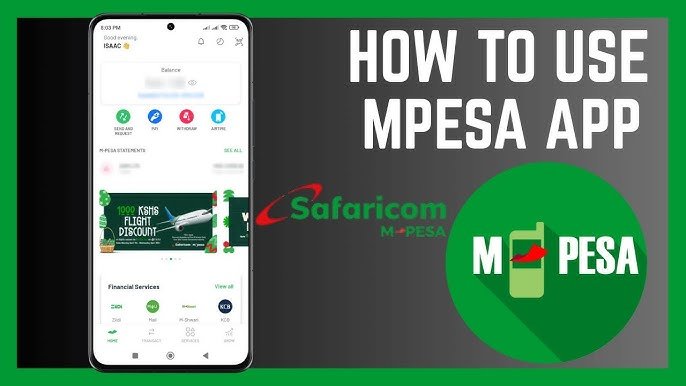
The M-PESA app navigation bar contains six main menu options — Home, Transact, Grow, My Spend, Discover, and Account — each designed to make managing your money fast, secure, and convenient. These tabs are always visible at the bottom of the app, ensuring you can easily switch between services without getting lost.
Think of the navigation bar as your financial control center. Whether you want to send money, pay bills, track spending, or explore new financial tools like Fuliza, M-Shwari, and KCB M-PESA, everything is just one tap away. Safaricom designed this layout to help users complete everyday tasks with fewer steps, while also giving access to advanced features like global transfers, bill manager, and expense analytics.
Home Tab: Your Financial Dashboard
The Home tab is the default landing page every time you log in to the M-PESA app. It acts as your financial dashboard, giving you quick access to the most important features and information without having to navigate deeply into the app.
Here’s what you’ll find on the Home tab:
- M-PESA Balance – Easily check your balance at a glance. You can also tap to hide your balance for extra privacy.
- Fuliza Credit Limit – If you’re opted into Fuliza, the available overdraft is displayed so you always know your borrowing capacity.
- Quick Actions – A shortcut panel for the most frequently used functions:
- Send Money
- Pay (Pay Bill or Buy Goods)
- Withdraw (ATM or Agent)
- Buy Airtime (for yourself or others)
- Monthly Spend Card – A summary of your spending, with a category breakdown to show where your money goes.
- Full Statements – View detailed transaction history and download receipts when needed.
- QR Scanner – Instantly scan till numbers or payment QR codes for fast, cashless payments.
Why It Matters
The Home tab is designed for speed and convenience. Instead of digging through menus, you can complete common tasks in just two taps. For users who make frequent transactions, this hub saves valuable time and makes money management less stressful.
Transact Tab: All Your Transactions in One Place
The Transact tab is the heartbeat of the M-PESA app. This is where you go whenever you want to move money, make payments, or access core M-PESA services. Instead of using USSD codes, the app provides a clean, intuitive menu that organizes all transactions in one place.
Here’s what you can do on the Transact tab:
- Send & Request Money
- Send Money to M-PESA users
- Send Money to Other Networks
- Request Money (with options to accept, reject, or block requests)
- M-PESA Global
- Send to Mobile numbers abroad
- Send to Bank accounts
- Send via Western Union
- Link and transact with PayPal (Top-Up and Withdraw)
- Estimate costs before sending
- Payments
- Pay Bill (manual entry, favorites, or bill manager)
- Buy Goods (via till numbers or saved merchants)
- Pochi la Biashara (merchant accounts for small businesses)
- Withdrawals
- Withdraw at ATM
- Withdraw at Agent
- Airtime Services
- Buy Airtime for your number
- Buy Airtime for others
- Fuliza M-PESA
- Opt-in or opt-out of the service
- View dashboard: balance, limit, and due amounts
- Use Fuliza when funds are insufficient
Why It Matters
The Transact tab is built to replace the old USSD menus with a smarter, faster experience. It ensures you can complete both local and international transactions with fewer errors, better visibility, and digital receipts.
Grow Tab: Access to Loans and Savings
The Grow tab in the M-PESA app is where you can access financial services that help you save, borrow, and invest. Instead of relying on separate apps or long USSD menus, Safaricom has integrated these services into one convenient place.
Here’s what you’ll find on the Grow tab:
- KCB M-PESA
- Save money securely with interest.
- Borrow short-term loans depending on your credit profile.
- M-Shwari
- Offers both savings and instant mobile loans.
- Allows you to set up a lock savings account for disciplined saving.
- Mali
- An investment product that enables you to grow your money by investing in regulated money market funds.
- Other Financial Services
- As Safaricom partners with more institutions, additional savings and loan products are continuously added.
Why It Matters
The Grow tab transforms M-PESA from just a mobile wallet into a personal financial hub. It gives users easy access to banking-like services without needing to visit a bank branch.
With just a few taps, you can:
- Borrow emergency funds when you’re short on cash.
- Save for goals like school fees, rent, or emergencies.
- Grow wealth by investing in low-risk products like Mali.
The Grow tab ensures financial inclusion for millions of Kenyans by making savings and loans accessible to anyone with an M-PESA account — no paperwork, no queues.
My Spend Tab: Track and Manage Your Expenses
The My Spend tab is where the M-PESA app helps you take control of your finances by offering detailed insights into how you spend your money. Instead of guessing where your cash goes, the app provides smart analytics and visualizations that make your financial habits easy to understand.
Here’s what you’ll find in the My Spend tab:
- Monthly Expense Summary
- Displays your total expenses for the current month.
- Swipe left or right to view past months or see the last six months aggregated.
- Expense Categories
- Transactions are automatically sorted into categories such as bills, shopping, airtime, or withdrawals.
- Tap on a category to view all related transactions.
- Charts and Visuals
- A line chart shows your accumulated expenses across the month.
- Easy-to-read graphs give you a snapshot of your financial behavior.
- Export Statements
- Generate and download filtered statements by date or transaction type.
- Share statements with others directly from your phone.
Why It Matters
The My Spend tab acts as your personal finance manager. With it, you can:
- Identify where most of your money goes.
- Cut unnecessary spending by analyzing categories.
- Keep track of recurring expenses like subscriptions or utility bills.
- Monitor progress toward financial goals with six-month trend tracking.
For anyone who wants to budget smarter and spend more consciously, the My Spend tab is a powerful tool right inside the M-PESA app.
Discover & Account Tabs: Explore Services and Personalize Your App
The Discover and Account tabs round out the M-PESA navigation bar by helping you find new services and manage your personal settings. Together, they make the app more versatile and user-centered.
Discover Tab: Explore New Services
The Discover tab connects you to services from Safaricom and third-party partners without leaving the M-PESA ecosystem. Here’s what you can do:
- Safaricom Services – Purchase mobile bundles and other products.
- Transport & Travel – Book bus tickets or Madaraka Express train rides.
- Utilities & Everyday Needs – Pay for services like ProGas and CPF.
- More Services – As new partners join, additional options are rolled out regularly.
This tab essentially acts as a marketplace, making the M-PESA app more than just a wallet.
Account Tab: Manage Your Profile and Settings
The Account tab is your personal hub for controlling the app experience. Features include:
- Profile Settings – Change profile picture, enable or disable biometrics, and update your PIN.
- Support & FAQs – Access help channels, announcements, and common questions.
- Legal & App Information – Review Safaricom’s Terms & Conditions and Privacy Policy.
- Offline Mode Settings – Enable or disable SMS-based offline mode for transactions without internet.
- Manage Favourites – Add, edit, or remove contacts and businesses for faster transactions.
Why They Matter
The Discover tab ensures you’re always aware of services you can access, while the Account tab empowers you to customize, secure, and manage your app experience. Together, they bring flexibility and personalization, turning M-PESA into more than just a payment tool — it becomes your all-in-one financial companion.
Conclusion
The M-PESA app navigation bar is designed to give you full control of your money in just a few taps. From the Home tab where you access balances and quick actions, to the Transact tab for payments and withdrawals, every feature is built for convenience.
The Grow tab empowers you with loans and savings tools, while the My Spend tab helps you track expenses and build healthier financial habits. Finally, the Discover tab introduces new services, and the Account tab lets you personalize and secure your app experience.
By mastering these menu options, you’ll unlock the full potential of the M-PESA app — making it more than just a mobile wallet, but a complete financial management tool that fits right in your pocket.
Frequently Asked Questions About the M-PESA App Navigation Bar
What are the main tabs in the M-PESA app navigation bar?
The navigation bar has six main options: Home, Transact, Grow, My Spend, Discover, and Account. Each serves a unique purpose, from checking balances to accessing loans and managing expenses.
Can I send money to other networks using the Transact tab?
Yes. The Transact tab allows you to send money not only to M-PESA users but also to other mobile networks. You can also request money, pay bills, buy goods, and use M-PESA Global for international transfers.
How does the My Spend tab help with budgeting?
The My Spend tab provides charts, expense summaries, and category breakdowns. This helps you track where your money goes and make smarter financial decisions. You can even export and share statements.
What services are available in the Discover tab?
Discover connects you to Safaricom and third-party services. You can buy bundles, pay for utilities like ProGas, book bus tickets, or even purchase Madaraka Express train tickets. More services are added regularly.
Can I change my M-PESA PIN or enable biometrics in the Account tab?
Yes. The Account tab lets you update your PIN, change your profile picture, enable/disable biometrics, and manage favorites. You’ll also find FAQs, support contacts, and legal documents here.
Do I need internet to use the M-PESA app?
Not always. On Android devices, you can activate Offline Mode in the Account tab, which allows you to perform common transactions like sending money, paying bills, and withdrawing funds using SMS — without internet.