
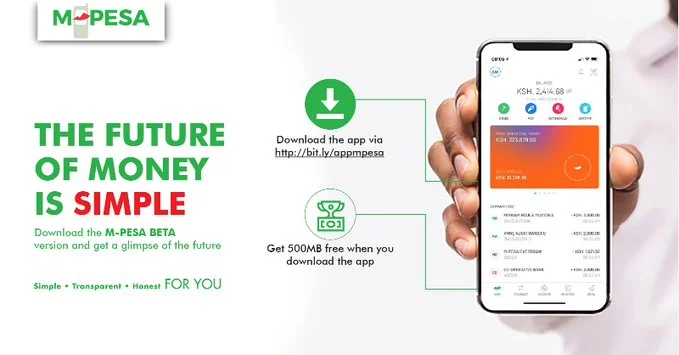
The M-PESA App Quick Actions let you send money, pay bills, buy airtime, and even withdraw cash in just a few taps—making your transactions faster and more convenient. Instead of navigating through multiple menus, Quick Actions place the most important features right on your home screen, saving you precious time when you need it most.
Think about those moments when you’re rushing to send fare to a friend, pay an urgent utility bill, or buy airtime before a call drops. Quick Actions eliminate the hassle of searching through menus, ensuring you complete transactions in seconds.
Beyond speed, this feature also makes the M-PESA app more user-friendly by grouping the most-used options where you can’t miss them. Whether you’re new to M-PESA or a long-time user, mastering Quick Actions transforms how you interact with mobile money.
What Are Quick Actions in the M-PESA App?
Quick Actions in the M-PESA App are shortcut buttons on your home screen that give you immediate access to the most frequently used transactions. Instead of clicking through menus, you can perform key tasks in just a few taps. This feature is designed to save time and make the app more intuitive for everyday users.
When you log in, you’ll notice a set of options under the Quick Actions panel. These typically include:
- Send Money – Instantly transfer funds to M-PESA users or other networks.
- Pay – Includes both Pay Bill and Buy Goods options for merchants, utilities, and services.
- Withdraw – Choose to withdraw cash either from an ATM or an M-PESA Agent.
- Buy Airtime – Purchase airtime for your own line or for friends and family.
Why Quick Actions Matter
- Speed: Cut down the number of steps needed to complete common transactions.
- Simplicity: Everything you need most is on one screen, reducing confusion.
- Convenience: Perfect for urgent payments, airtime top-ups, or when you’re in a hurry.
- User-friendly: Designed to fit naturally into how Kenyans use M-PESA daily.
Instead of scrolling through menus, Quick Actions act like one-click solutions, ensuring that essential transactions are never more than a tap away. This makes the M-PESA App a powerful upgrade from the traditional USSD *334# method, blending efficiency with modern mobile banking convenience.
How to Use Quick Actions Step by Step
Using Quick Actions in the M-PESA App is straightforward. The goal is to help you complete transactions without digging through menus. Below is a step-by-step guide for the most common Quick Actions:
1. Send Money
- Open the M-PESA App and log in.
- On the home screen, tap Send Money under Quick Actions.
- Select a contact from your phone book or enter the number manually.
- Enter the amount and confirm details.
- Insert your M-PESA PIN to complete the transfer.
2. Pay (Pay Bill or Buy Goods)
- Tap Pay from Quick Actions.
- Choose Pay Bill (for services like electricity, water, TV) or Buy Goods (for shops and merchants).
- Enter the business number/till number and account number if required.
- Enter the amount and confirm with your PIN.
3. Withdraw
- Tap Withdraw under Quick Actions.
- Choose At Agent or At ATM.
- Enter the agent/ATM number and amount.
- Confirm and complete using your PIN.
4. Buy Airtime
- Tap Buy Airtime from Quick Actions.
- Select My Number (self) or Other Number.
- Enter the phone number (if for someone else) and amount.
- Confirm with your PIN.
💡 Pro Tip: If you use a transaction often, add it to your Favorites for even quicker access in future.
Quick Actions are built for speed. With just two or three taps, you can handle urgent money matters instantly.
Benefits of Using Quick Actions in Daily Life
Quick Actions are not just about convenience—they are designed to make your financial life smoother and stress-free. Here’s why they matter in daily use:
1. Save Time in Emergencies
Imagine you’re rushing to send fare to a friend who’s already in a matatu, or your electricity token is about to run out at night. Quick Actions let you complete these transactions in under a minute, preventing unnecessary delays or embarrassment.
2. Simplify Everyday Tasks
With Quick Actions, there’s no need to memorize Pay Bill or Till numbers. Frequent bills and merchants appear under your favorites, making the process much simpler.
3. Enhance Convenience
- One-tap access to airtime, payments, and withdrawals.
- No scrolling through menus, everything you need is right on the home screen.
- Works even when you’re multitasking, like during work or travel.
4. Reduce Errors
Since Quick Actions provide shortcuts and let you pick from recent or frequent contacts/merchants, the chances of entering wrong numbers or paying the wrong account are reduced.
5. Bridge the Gap Between USSD and Modern Apps
Many Kenyans are used to *334#, but Quick Actions combine that familiarity with modern smartphone convenience. You still get the speed of USSD but with a clean, easy-to-use interface.
In short, Quick Actions help you save time, reduce stress, and gain confidence when handling money digitally. They turn M-PESA into more than just a mobile wallet—it becomes your everyday financial assistant.
Tips to Get the Most Out of Quick Actions
Quick Actions are powerful, but to truly benefit from them, you need to know how to use them smartly. Here are some pro tips:
1. Set Up Favorites and Frequent Contacts
- Add frequently used Pay Bills, Buy Goods merchants, or phone contacts to your Favorites.
- This ensures they appear automatically in Quick Actions, saving you from typing or searching.
2. Keep Your App Updated
- Safaricom regularly updates the M-PESA App with new features and improvements.
- Check the Play Store or App Store to ensure you’re using the latest version.
3. Use Biometrics for Faster Authentication
- Enable fingerprint or Face ID login to skip entering your PIN every time.
- Also speeds up payment confirmations, especially when you’re on the move.
4. Activate Offline Mode (Android Only)
- If you’re using an Android phone, activate Offline Mode in the settings.
- This allows you to use Quick Actions even without internet (via silent SMS).
5. Organize Your Home Screen
- Explore the home screen layout and familiarize yourself with where each Quick Action is located.
- This helps you respond quickly in urgent situations.
6. Use the QR Scanner
- Instead of typing till or pay bill numbers, use the QR code scanner (on the home screen) for instant payments.
Common Mistakes to Avoid with Quick Actions
While Quick Actions are designed for speed, a few mistakes can lead to delays or even failed transactions. Being aware of these pitfalls ensures smoother use:
1. Entering the Wrong Number or Till
- Many users rush and key in the wrong phone number or till number.
- Always double-check recipient details on the confirmation screen before entering your PIN.
2. Ignoring App Updates
- Outdated versions of the app may cause Quick Actions to freeze or miss new features.
- Regularly update your app from the Play Store or App Store.
3. Skipping Security Features
- Some users disable biometrics or stick with weak PINs.
- For safety, use a strong PIN and enable fingerprint/Face ID for quicker, secure logins.
4. Not Using Favorites
- Manually entering Pay Bill and Buy Goods numbers every time slows you down.
- Add frequently used numbers to your Favorites so they appear instantly in Quick Actions.
5. Forgetting Offline Mode (Android Users)
- In areas with poor internet, you may struggle to transact if Offline Mode isn’t enabled.
- Activate it in settings so Quick Actions still work via SMS.
6. Relying Only on Quick Actions
- While they cover core functions, some services (like international transfers) need full navigation.
- Learn to use both Quick Actions and the full menu for a complete M-PESA experience.
Conclusion
Quick Actions in the M-PESA App are more than shortcuts—they are a smarter way to handle daily financial transactions. By placing essential services like Send Money, Pay Bill, Buy Goods, Withdraw, and Buy Airtime right on your home screen, they save you time, reduce errors, and make the app more user-friendly.
When used effectively—along with features like Favorites, Offline Mode, and biometrics—Quick Actions turn M-PESA into a true financial assistant, always ready when you need it most.
Whether you’re paying urgent bills, buying airtime on the go, or sending money to loved ones, Quick Actions ensure that the process is fast, secure, and stress-free. Explore them today and unlock the full convenience of the M-PESA App.
Frequently Asked Questions About M-PESA App Quick Actions
Can I use Quick Actions without internet?
Yes, you can—if you’re on an Android device. The M-PESA App offers an Offline Mode that allows you to perform common Quick Actions such as sending money, buying airtime, paying bills, and withdrawing cash without needing mobile data or Wi-Fi.
Instead, the app uses silent SMS to complete transactions securely. To activate it, go to your Account settings and toggle Offline Mode on. Remember, this feature works only if your Safaricom SIM card is in the device. For iPhone users, an internet connection is required since Offline Mode is currently unavailable on iOS.
How do I add favorites to Quick Actions?
Adding favorites makes Quick Actions even faster by saving your most-used contacts or merchants. To add one:
- Open the Send Money, Pay Bill, or Buy Goods flow.
- Select the contact, till, or pay bill number you want to save.
- Tap Add Favorite and confirm or edit the name.
- Save, and it will appear in your favorites list.
Favorites reduce errors since you won’t need to type details each time. You can also edit or delete favorites from the same screen. This is especially helpful for frequent bills like electricity or for merchants you shop from regularly.
Are Quick Actions secure to use?
Absolutely. Quick Actions are as secure as any other M-PESA transaction. Every payment, withdrawal, or airtime purchase still requires your M-PESA PIN or biometric authentication if enabled.
The app also shows a confirmation screen before processing, so you can double-check details. Additionally, your transaction records are saved in Full Statements, which can be downloaded or shared as receipts. For extra security, always keep your app updated and avoid sharing your PIN with anyone. If you suspect unauthorized activity, Safaricom support is available 24/7.
What happens if a Quick Action transaction fails?
If a transaction through Quick Actions fails, first confirm that you have:
- Sufficient balance or active Fuliza limit.
- A stable internet connection (or Offline Mode enabled for Android).
- Correct details entered for the recipient, biller, or agent.
If these conditions are met and it still fails, you’ll see an error message. Note down the Transaction ID or error code and contact Safaricom customer care. In most cases, failed transactions are auto-reversed within minutes. You can also check your My Spend or Statements tab to verify if money was deducted.
